Browse all docsPart 4 of 9
Build with Quick AI
Quick AI is the assistant inside the builder. Ask for a change in plain language, give it photos or a web page to work from, then keep or undo what it did.
Part 4 of 96 min read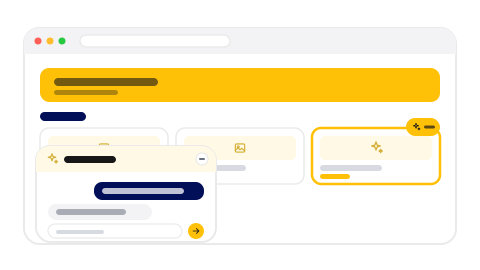
Quick AI is the assistant built into the builder. You tell it what you want in ordinary language, and it makes the change for you: adds a section, rewrites every description, raises your prices, switches the theme. It works on the catalogue you have open, so you watch each edit land in the preview as it happens.
It is not a separate generator you run once at the start. You can reach for it on the first day, when the catalogue is empty, and again six months later to change one price.
Open it in the builder
Open any catalogue in the builder and look for Ask AI: in the toolbar on the right on a computer, in the bar along the bottom on a phone. The panel opens beside your catalogue, and you type in it the way you would text someone.
If you are not sure where to start, the panel suggests a few things to try. Tapping one sends it, so you can see how the whole thing behaves before writing anything yourself.
What it can change
Quick AI reaches the same settings you do, and it is held to the same plan limits. If something is not part of your plan, it tells you so rather than quietly doing something else.
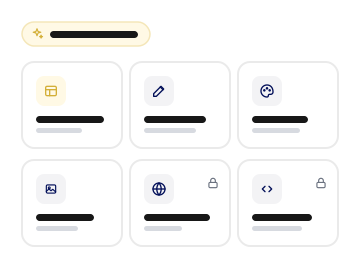
- Sections and items. Add, rename, reorder and delete them, or fill a new section with items in one go.
- Words and prices. Rewrite descriptions in a different tone, shorten them all, or change prices across a whole section.
- Look and feel. Switch theme, adjust fonts and sizes, or mix a custom palette and save it to your theme library.
- Photos. Find and attach a stock photo for items that have none, when you ask for images.
- Header, footer and business details. Contact details, social links, the action button, and your legal information.
Three ways to give it what it needs
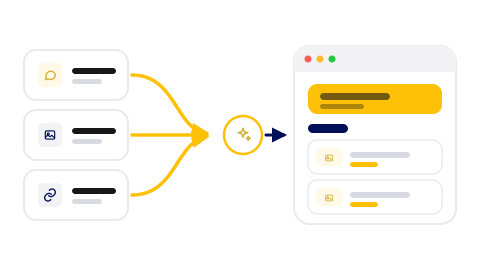
The quality of what comes back depends on what you give it. There are three ways to hand it the raw material, and you can combine them in a single message.
Describe it in words
The simplest route. Say what your business is and what you want: add a starters section with six Italian antipasti and short descriptions. Short, concrete, specific about the number of items and the tone.
Attach photos of what you already have
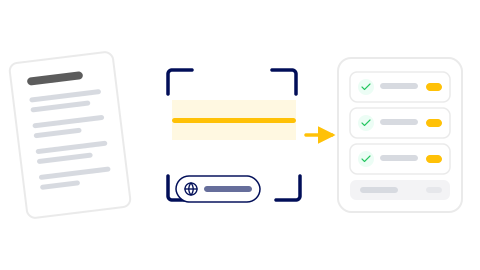
If your menu or price list exists on paper, photograph it and attach the photos to your message. Quicktalog reads the text out of them in your own browser, then Quick AI turns it into items with names and prices. A flat, well lit photo of a clean page reads almost perfectly; a creased page shot at an angle leaves you more to fix.
Point it at a page you already have
On paid plans you can paste the address of a page you already run, like your website or an online menu, and ask Quick AI to work from it. It reads the words on that page and nothing else: it never copies code, scripts or embeds out of a page, and it only ever opens an address you typed yourself.
Bigger requests become a checklist
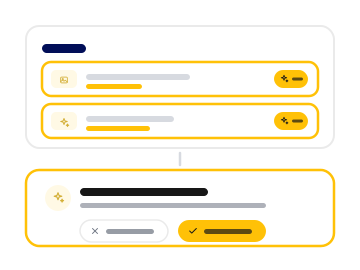
Ask for several things at once, or for one thing large enough to take many edits, and Quick AI writes a short plan first. You see the list of what it is about to do and each line ticks off as it finishes, so a long build is something you can follow rather than a spinner you wait on.
If one piece turns out to be impossible, because your plan does not include that section type or you never supplied a booking link, that line is marked as skipped with the reason, and the rest carries on.
Step 1: Ask for what you want
One message is enough, even for a few separate things. Say what you want rather than which buttons to press.
Step 2: Watch the list
For anything larger, a short checklist appears first and ticks off as the work lands in your preview.
Step 3: Review the changes
Edited sections and items are outlined and tagged, so you can see exactly what moved.
Step 4: Keep it or undo it
Accept to keep everything, or reject to put the catalogue back the way it was before that request.
Keep it or undo it
Every change Quick AI makes arrives on the builder outlined and tagged, with a bar offering two choices: accept them all, or reject them all. Rejecting puts the catalogue back the way it was before that request, so there is no risk in asking for something and seeing how it looks.
What a request costs
AI work is measured in credits, and every plan includes a monthly allowance. The free plan comes with 15 credits a month, and the paid plans go up from there. The allowance resets at the start of each month and unused credits do not carry over.
- Asking for a change costs 2 credits, however many edits it takes to do.
- A request that becomes a checklist costs 1 more for each item on the list after the first.
- Reading a web page adds 2 credits each time.
- Writing one item description costs 1 credit.
- Asking a question is free, and so is a request that ends up changing nothing.
You never have to work this out in your head. The panel shows how many credits you have left, a checklist tells you what it is about to cost before it starts, and the Usage tab of your dashboard shows the month so far.
One thing to know on the free plan: confirming your email address is what switches Quick AI on. If it will not start for you, check your inbox for the confirmation link before anything else.

Writing a request that works
Quick AI reads your catalogue before it answers, so you rarely need to explain what is already there. What helps is being specific about the outcome.
- Say how many. Six items is a better instruction than a few items.
- Name the section. Pointing at Desserts is clearer than the last one.
- Describe the tone you want rather than editing word by word: warmer, shorter, less formal.
- Ask for one change at a time when you are unsure. It is easier to judge, and cheaper to undo.
- Ask it questions. What would you change about this page costs nothing and often beats guessing.
One more place AI helps
You do not have to open the panel for small things. When you are editing an item, the description field has its own button that writes a description from the item name, or rewrites the one you have already typed. It costs a single credit and is the fastest way to get a blank field filled.
Was this helpful?